Update this doc
The documentation of this web site is maintained on github and automatically updated on readthedocs every time there is a new commit.
To contribute you need to fork the repository, make the changes in your fork and issue a pull request. Below are instructions to accomplish these steps.
Fork the repository
This section explains the basics for developers who wish to contribute to a project mantained on GitHub and using the fork / pull request mechanism for accepting developer contributions.
The project is maintained on GitHub, which is a version control and a collaboration platform for software developers. To start first register on GitHub and fork the Project repository by clicking the Fork button in the header of the Project repository:
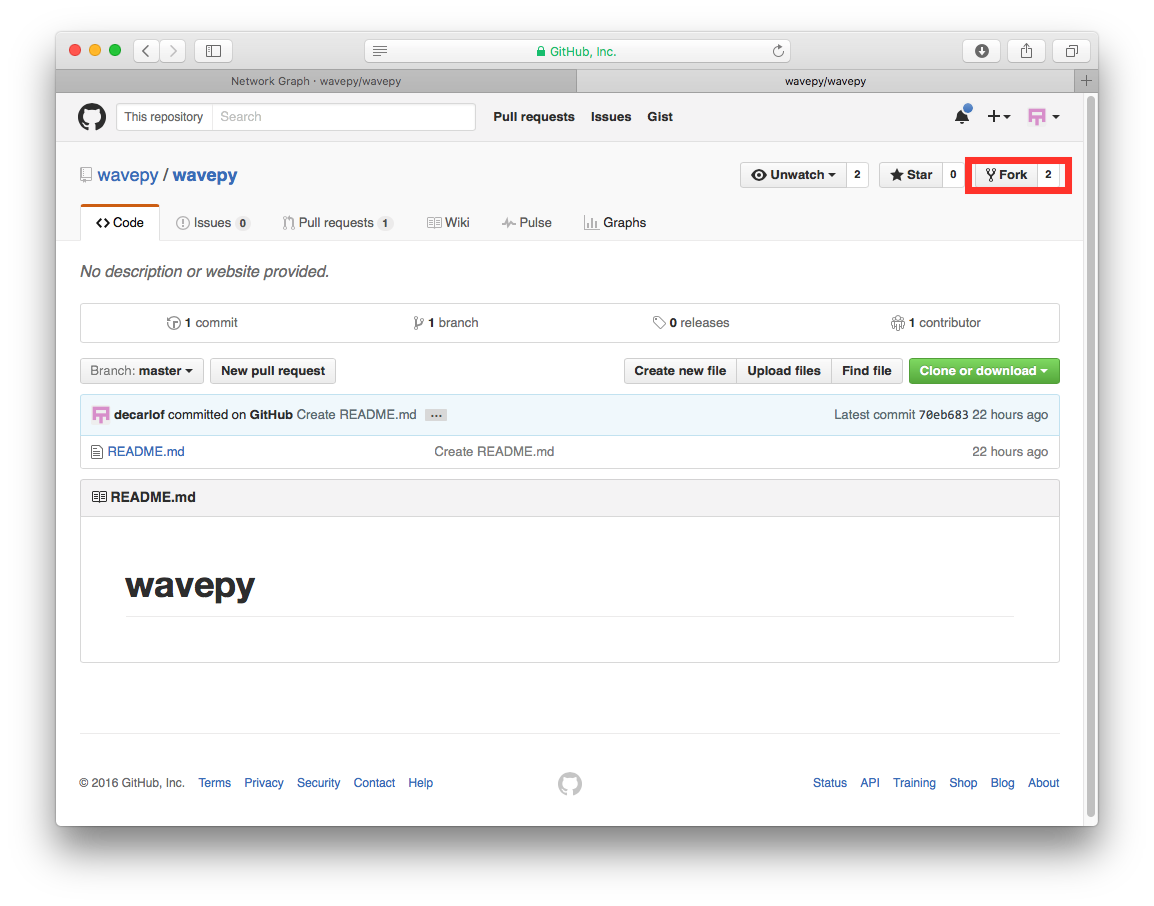
This successfully creates a copy of the project in your personal GitHub space.
Clone the repository
The next thing you want to do is to clone the repository you just created in your personal GitHub space to your local machine.
You can do this by clicking the Clone in Desktop button in the bottom of the right hand side bar:
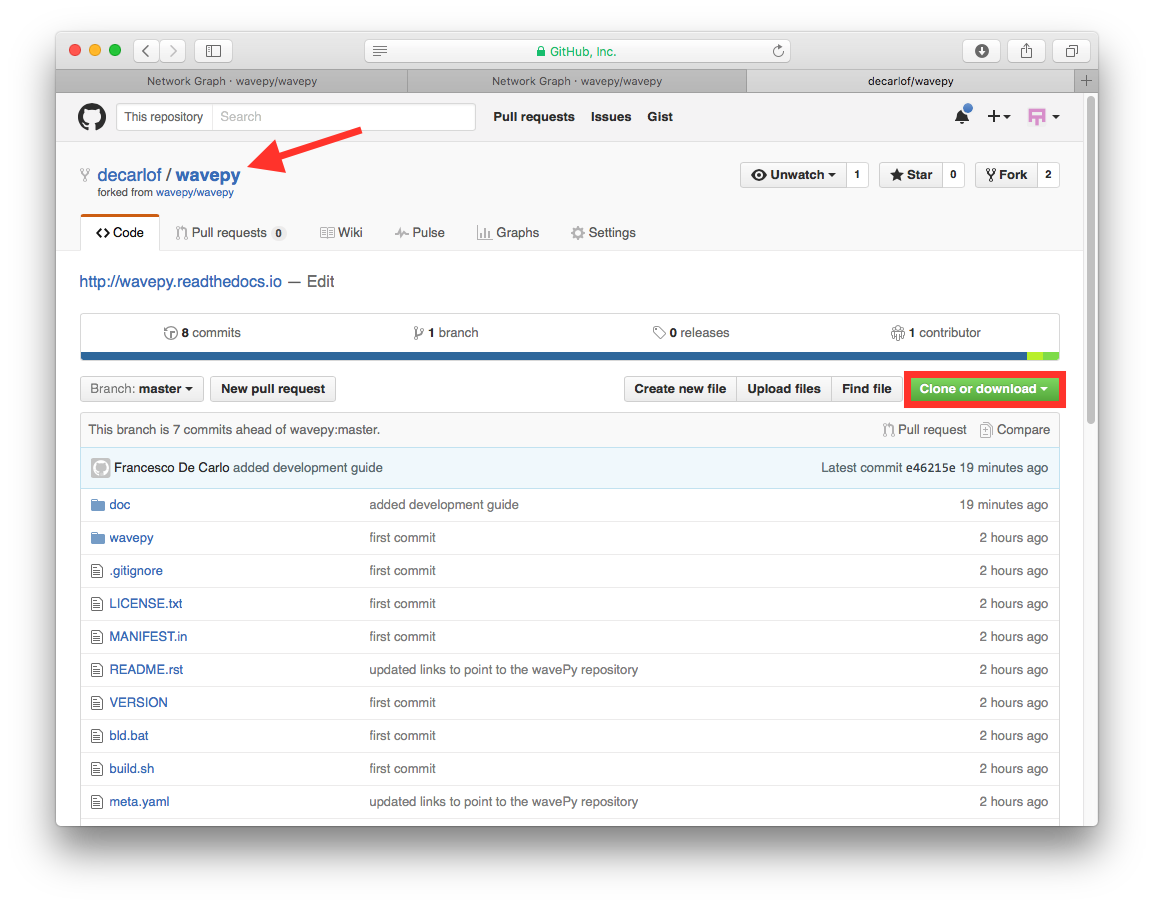
This will launch the GitHub desktop application (available for both Mac and Win) and ask you where you want to save it. Select a location in your computer and feel comfortable with making modifications in the code.
Make the changes
Once you have a local copy of the documentation repository you can start making changes. To verify the new resulting documentation you can build the web pages locally and inspect them with the browser.
Build web pages locally
In your python anaconda environment create a new conda environment called docs:
conda create --name docs python=3.9
conda activate docs
conda install sphinx
conda install sphinx_rtd_theme
conda install -c conda-forge sphinxcontrib-bibtex
then you can build the docs locally with:
cd your_working_directory/doc
make html
Preview the docs
To pre-view the results in your browser, open file:///your_working_directory/BC/doc/_build/html/index.html
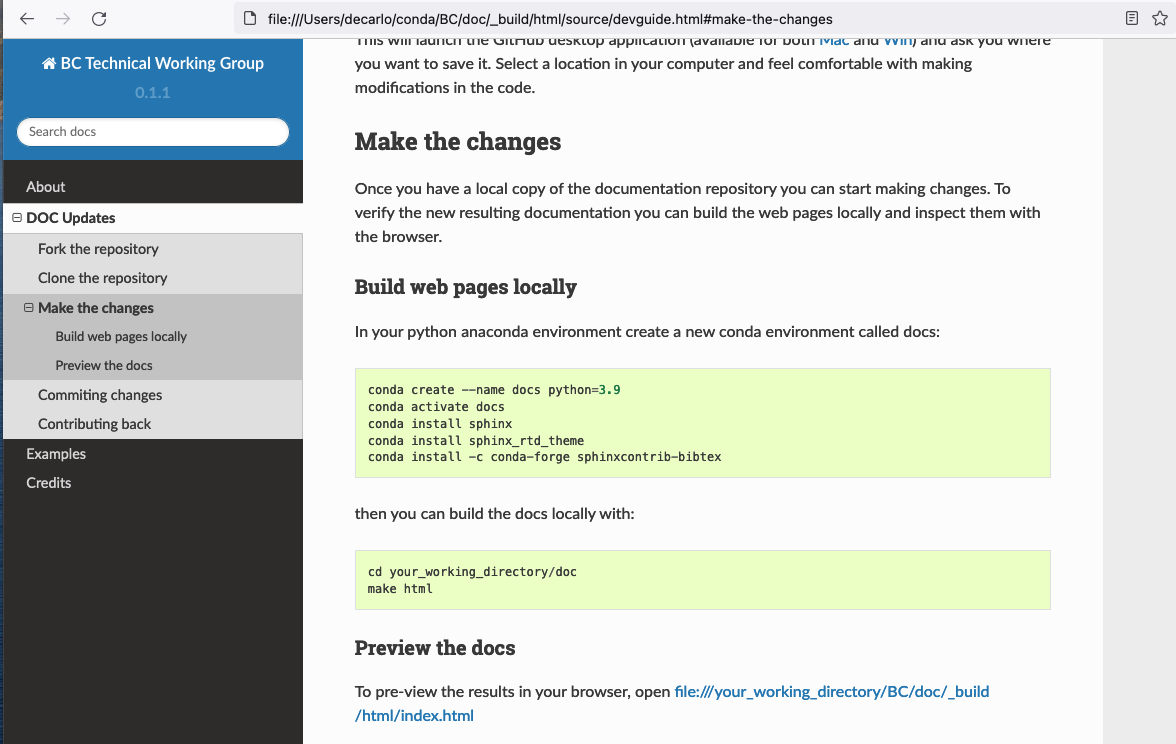
to repear the doc build:
make clean
make html
Commiting changes
After making some changes in the code, you may want to take a snapshot of the edits you made. That’s when you make a commit. To do this, launch the GitHub desktop application and it should provide you all the changes in your code since your last commit. Write a brief Summary and Description about the changes you made and click the Commit button:
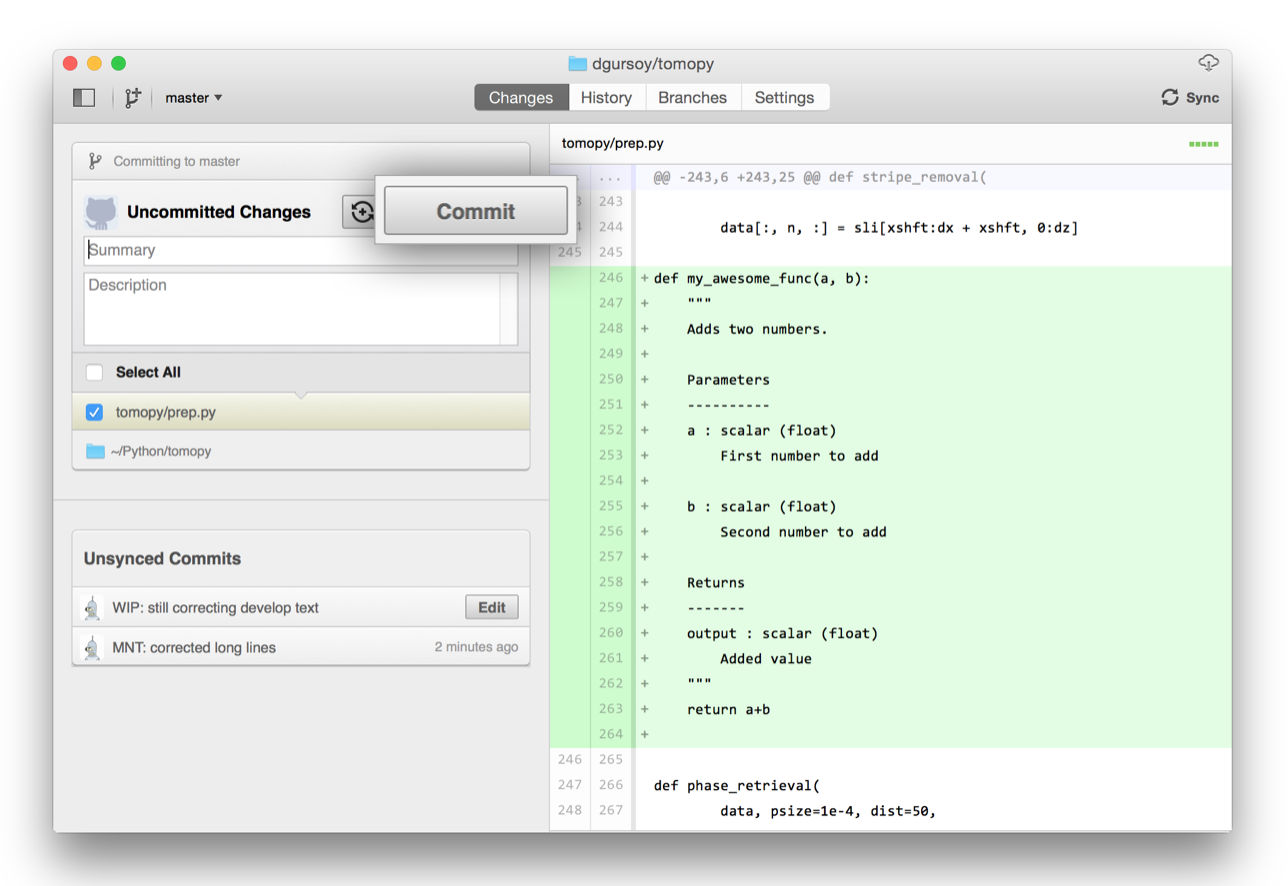
You can continue to make changes, add modules, write your own functions, and take more Commit snapshots of your code writing process.
Contributing back
Once you feel that the functionality you added would benefit the community, then you should consider contributing back to the project. For this, go to your online GitHub repository of the project and click on the compare button to compare, review and create a pull request.
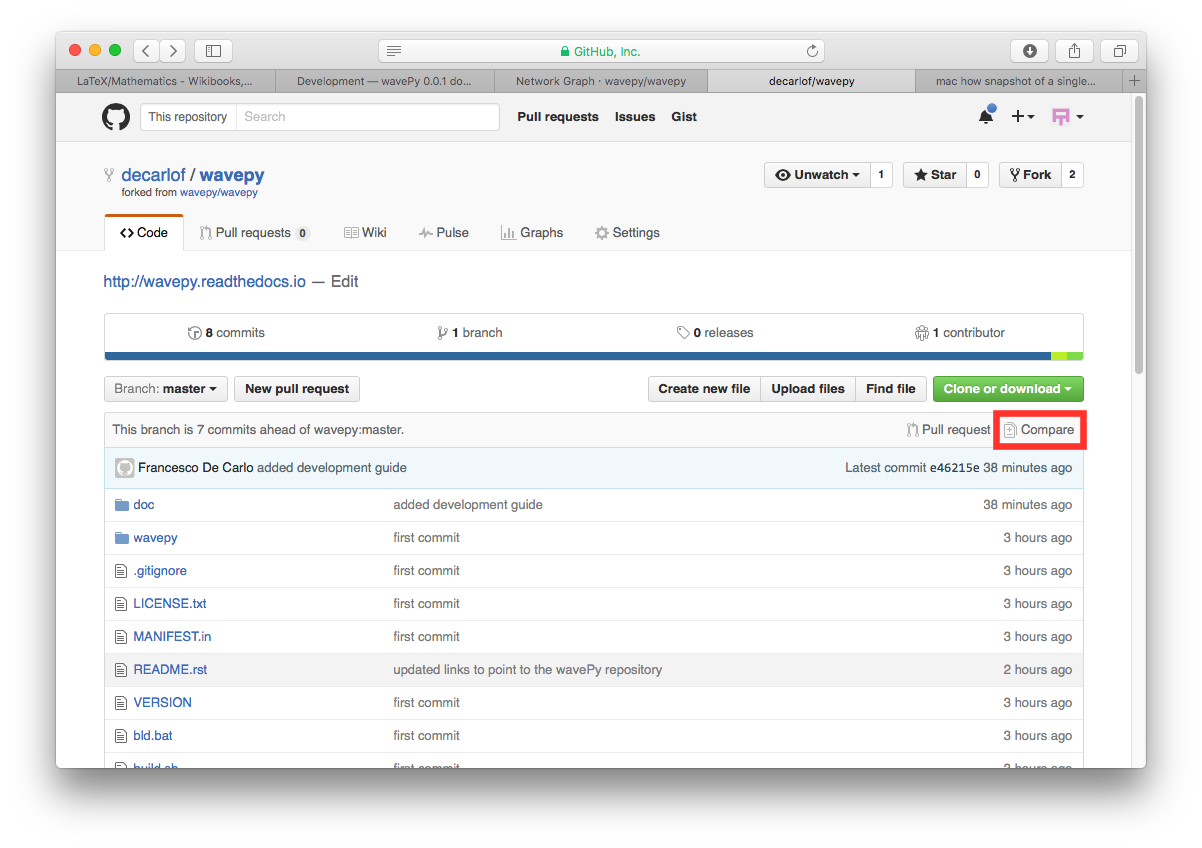
After clicking on this button, you are presented with a review page where you can get a high-level overview of what exactly has changed between your forked branch and the original project repository. When you’re ready to submit your pull request, click Create pull request:
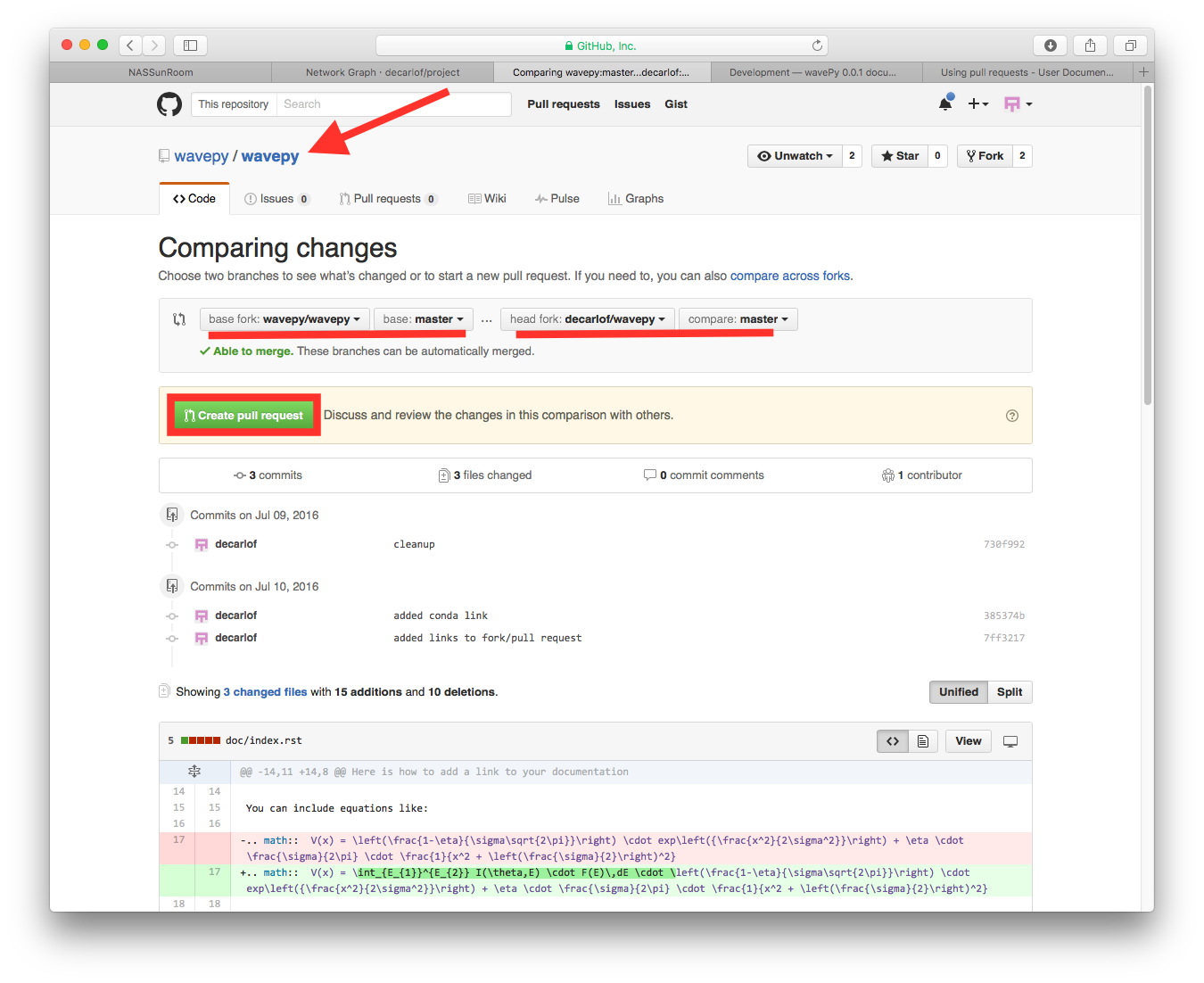
Clicking on Create pull request sends you to a discussion page, where you can enter a title and optional description. It’s important to provide as much useful information and a rationale for why you’re making this Pull Request in the first place.
When you’re ready typing out your heartfelt argument, click on Send pull request.
You’re done!